
Ask a question, request a quote or check recovery status. Call us.
We are ready to help you recover your data 24 hours/day, 7 days/week!
Hard Drive Recovery Services And You
Hard drive recovery is probably the least likely computer-related assistance you ever expected to receive. If you are searching online for tips on HDD recovery, it means that you are suffering from data loss. Moderate or severe, data loss is stressful, time-consuming and can cost you or your business money in lost revenue. While we understand the anxiety that comes with data loss, don’t panic.  The best thing that you can do when your hard drive crashes or starts making strange noises is to contact a professional at Hard Drive Recovery Group.
We know: a failed hard drive isn’t fun. It doesn’t take a trained psychologist to realize that when you’re fearing that all of the important files on your drive may have disappeared, it’s an extremely stressful situation.
Your hard disk drive contains so much that is critical to your life – your tax files, business documents, email, family photos and more – and if those items are gone, it can make for a pretty tough situation.
As amazing as computers have been with regards to adding productivity to today’s businesses, they, as all mechanical devices, are subject to damage and emergencies. Nowhere is this more apparent than during a hard drive crash.
The Microsoft Windows blue screen of death may appear, shutting down the machine and rendering it useless.
Buzzing or hard drive clicking sounds may emanate from your hard drive, each signal that there is something very wrong with your drive. If there’s any piece of advice you should take from a situation which requires hard drive data recovery, it’s that it happens to everyone. When hard drive failure occurs, there is no one at fault. But there are a number of things you can do.
Is Drive Failure Tough? Yes… Hopeless? Never.
It’s important you remember that even if you have encountered the classic signs of physical hard drive failure, such as:
- Your drive does not seem to make any noise when you start up your computer.
- Your hard disk makes strange sounds when performing actions, such a clicking, or unusual whirring, or grinding noises.
- During start up procedures, your BIOS does not recognize your hard drive is available. This symptom is one of the most common symptoms.
- Your BIOS, or DOS system (use an old Windows startup disk to check this) does not recognize your drive
All of your data is very recoverable, as long as it’s safe. And fortunately, keeping your drive safe once it’s encountered a hard drive crash is easy. All it takes is a little willpower, and a simple promise to yourself.
It’s something we call the Safe Data Pledge, and it looks like this:
- I promise to power my machine down as soon as possible. A buzzing or clicking drive may continue to work, but the longer it runs, the more likely the chance that the drive will physically damage itself, and make my data unrecoverable.
- I promise to NOT consider opening my hard drive in any way, as opening my hard drive will contaminate extremely intricate parts, and could make it virtually impossible for a professional hard drive recovery company to recover my files.
- I promise to NOT use data recovery software that does not come with a professional recommendation. If a data recovery professional (like one of our technicians) recommends a specific product after he or she has diagnosed my disk problem, then and only then will I consider using software to recover my files.
Once you’ve made the Safe Data Pledge, you’re basically guaranteeing (98% of the time, at least) that your data is recoverable. Avoiding the above mistakes means you will get your data back safely, quickly, and at a much lower cost than you might have thought.
Some Professional Data Recovery Advice
The first thing to ask yourself when your hard drive fails is the most important question of all:
How important is my data?
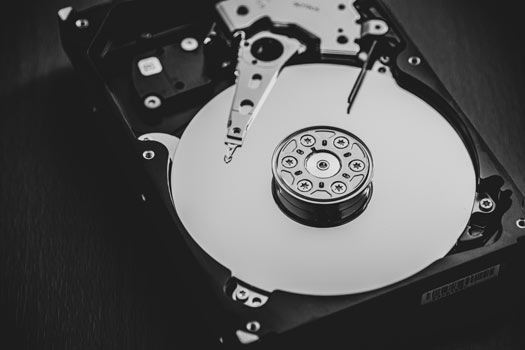 It might sounds silly, but the actions you take to recover your hard drive should reflect your data’s overall importance, and not just a “dollars and cents” data recovery cost that may seem high compared to the cost of the hard disk drive itself.
If your data is not very important: This is simple. If you have a few documents that you can afford to lose, you may just want to replace the drive, get a hold of some operating system restoration disks, and start over.
Additionally, if your drive is in a newer computer system, it may be covered by warranty. But understand this: data recovery is NEVER covered under warranty.
When you send your drive or laptop back to Dell, Lenovo, Acer, Apple or whichever manufacturer your computer is made by, they WILL NOT retrieve your data.
Instead, they will send you a new drive, typically with a blank operating system. Your files will be gone forever.
Hard Drives In The 2020s
Today’s computers are miles ahead of those created five short years ago. Faster processors, better hard disk drive technologies and the commodity pricing of high speed RAM have made these machines the most powerful the public has ever seen. In fact, many new computers are available to the average consumer at less than $1000 with most of the bells and whistles which would have previously made a system a $3000 and above item.
But while most technologies have become better with age, hard drives still encounter one problem – they are bound to fail, and when that happens, you will require the services of drive recovery experts like Hard Drive Recovery Group.
More At Risk?
In fact, because the newest hard disk drives are smaller and can store more data than ever, they are also more at risk for data loss than ever. This is because hard disk drive parts are small and still as incredibly sensitive as ever, and are more subject to their number one cause of the need for hard drive recovery: heat. Newer systems run hotter than ever, and in the process of cooling both processors and hard drives, use more fans. The fans typically bring in dirt and dust (two more enemies of hard drive technology), which build up and create additional heat. Left unprotected, and subject to the high demands of today’s more advanced software technologies, these can create the perfect conditions for hard drive failure, and as a result, the need for drive recovery.
Professional Hard Drive Recovery: Remember Your Rights
At Hard Drive Recovery Group, if there’s one thing we continue to advise our clients against, it’s over-aggressive hard drive recovery companies. These are the data recovery companies which, when called, ask very few questions and are quick to assume that your hard drive recovery situation will require in-shop hard drive repair. Know that the hard drive recovery industry is a large industry, with many pretenders who engage in shifty practices. Know also that your drive can be held hostage by unscrupulous drive recovery companies, something our clients often tell us horror stories of. So if the company you call does not feel right in anyway, by all means call another – it can save you lots of money and hassle in the long run.
— Hard Drive Recovery Group (@hdrecoverygroup) April 1, 2022
The Bright Side Of Hard Drive Recovery
One of the interesting points about hard drive crashes is that no two are the same. Different file systems, like say if you have a Mac versus a PC, can have different symptoms that will tell a professional data recovery technician when your data can be recovered using software, or perhaps even with remote data recovery services.
Because hard disk drives can break down through use or other, accidental errors, HDD recovery software has been developed to help restore lost data. If you know that your data loss isn’t severe or complex or due to a faulty hard drive, then your best solution is probably HDD recovery software. It is less expensive than having a data recovery service technician disassemble your entire hard drive, and it is a less complicated procedure. If you have accidentally deleted a file, HDD recovery software should be sufficient in restoring the lost data.
So, even though you might assume you have a mechanical problem with your hard drive, you actually may not. You may instead just have a file system problem that in the right hands can be fixed in an hour or less!
Diagnosing your hard drive problem is easy, and free, and only takes one call . Don’t have time for a phone call? Contact us here for a free drive diagnosis.
Remember always that no matter which company you choose to diagnose and repair your hard drive problem, always make sure they offer the Hard Drive Recovery Group guarantee:
No data recovered, no charge.
Please contact us here for a free hard disk drive data recovery quote. Don’t let your data disappear forever. Hard Drive Recovery Group can help!